StressFree | David Harrison

Open source development & digital architectural collaboration

Bluestreak and the birth of a collaboration kernel

Submitted by David on 7 January 2010 - 9:11am

Successful Architecture, Engineering and Construction (AEC) collaboration depends on the timely dissemination of relevant information throughout the project team. This task is made difficult by the number of collaboration interactions that occur and the diverse range of digital tools used to support them. To improve this process it is proposed that a collaboration kernel could weave together these disparate interactions and tools. This will create a more productive and efficient collaboration environment by allowing design discussion, issues and decisions to be efficiently and reliably exchanged between team members and the digital tools they currently use. This article describes how Project Bluestreak, a messaging service from Autodesk Labs, can be transformed into an effective collaboration kernel. To guide this transformation, the principles of the Project Information Cloud have been used to evaluate the existing service and identify areas for future development. These fundamental digital collaboration principles are derived from lessons learnt in the formation of the World Wide Web. When these principles are embodied within a digital collaboration tool, they have demonstrated an ability to improve the timely delivery of relevant information to members of the project team.

Seamless collaboration within a fragmented digital environment

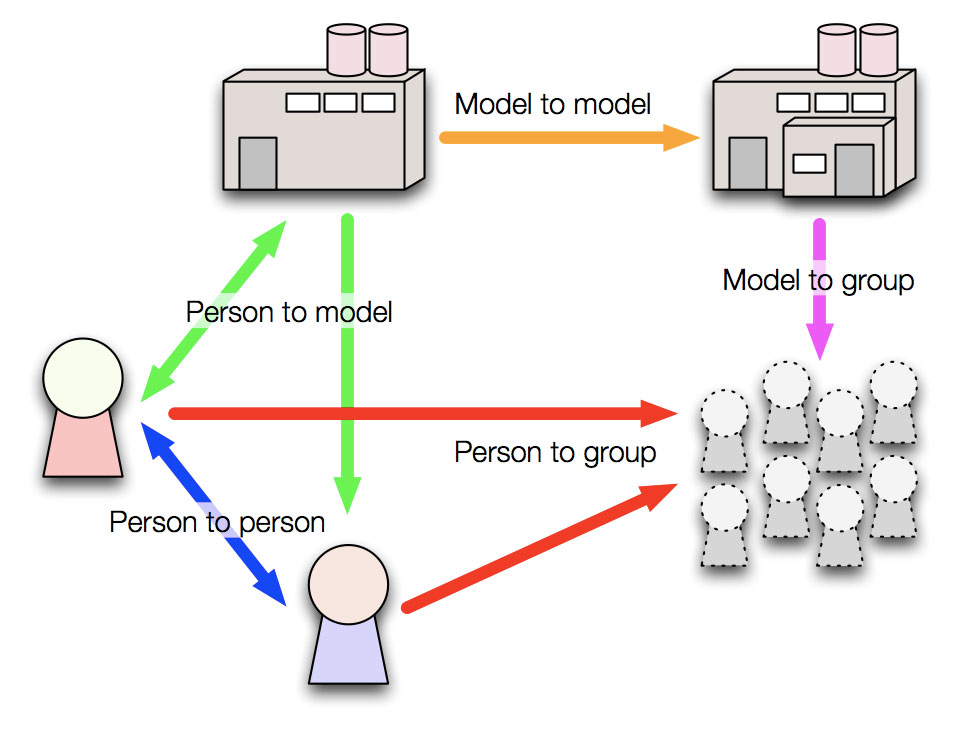
A successful AEC digital collaboration environment brings multiple parties together so that they can productively work towards a satisfactory and achievable design outcome. During this process participants must engage in a variety of interactions between team members and the digital models used to describe the design. These interactions, and the technologies commonly used to enable them, are summarised in the following diagram and table.

Note: The term 'model' refers to a CAD or BIM digital model that represents the proposed design. Digital models play an important role in the collaboration process as they communicate ideas, impose restrictions and can be manipulated to reflect a participant's opinion.

Synchronise two SilverStripe CMS instances

Submitted by David on 9 December 2009 - 12:40am

This script allows you to operate two distinct, fully functional SilverStripe instances and have the content of one synchronised with the other. When running a content management system in a corporate environment it is useful to have an internal 'development' site and a public 'production' site. SilverStripe has a couple of caching options, namely StaticPublisher and StaticExporter, but these generate static HTML files that cannot be easily modified by content editors.

This approach allows the development and production SilverStripe servers to be easily synchronised, but in between times, content editors are free to make different changes at each end. This is useful when internally the content of the website is undergoing significant change, but during this time the production website content must be 'maintained'.
i.e. You are not forced to 'freeze' your production website, or push internal changes out before they have been properly vetted.

The script copies the local SilverStripe MySQL database (sans page revisions) to the production site and synchronises the assets/Uploads directory.
Note: Page revisions are not sent to the production site because this takes a significant amount of time and bandwidth. Considering these revisions are stored on the internal development server, storing them in both locations is not necessary. Read more »

StressFree Webmin theme version 2.05 released

Tags:
Submitted by David on 18 October 2009 - 10:36pm

This update is minor but addresses a few issues:

  • Adds a Javascript patch submitted by Rob Shinn that adds sidebar support for multiple servers.
  • Fixes the missing footer link back to the module index bug.
  • Also included is compressed Javascript and CSS files which should slightly reduce load times.

The updated theme can be downloaded from here.

Integrating Google Site Search into SilverStripe

Submitted by David on 15 September 2009 - 8:32am

SilverStripe is an excellent, user-friendly content management system but its internal search functionality is, to put it kindly, useless. Fortunately with Google Site Search you can embed a Google-powered custom search engine into your SilverStripe site. Doing so requires a paid Site Search account, pricing for which starts at $100/year.

This tutorial explains how to integrate this Google Site Search XML feed into your SilverStripe site. Doing so has a number of benefits over the standard means of integrating Site Search, namely:

  • No Javascript is required to display results within the SilverStripe site.
  • The user is not taken to a separate, Google operated website to view results.
  • The look and feel is consistent with the rest of the SilverStripe site.
  • Multiple Site Search engines can be integrated into a single SilverStripe site.
  • Site Search results pages are integrated into SilverStripe's management console.

Note: To integrate Site Search into SilverStripe using the described method a Site Search plan must be purchased as this provides results in XML. The free, advertising supported, Site Search engine does not provide search results in XML and cannot be used. Read more »

StressFree Webmin theme version 2.04 released

Tags:
Submitted by David on 12 September 2009 - 10:48am

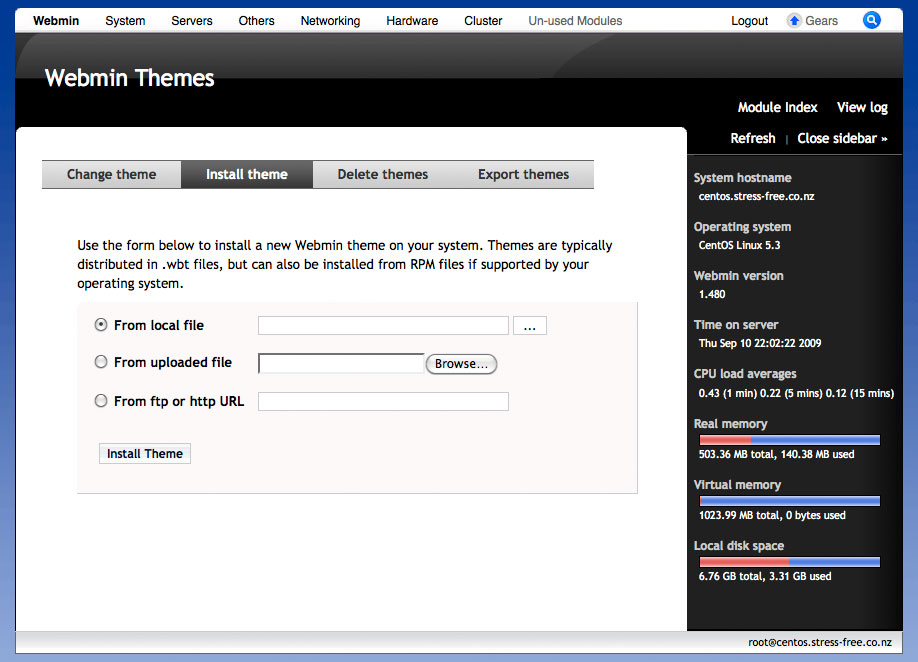
In what is hopefully the last update in a while the StressFree Webmin theme version 2.04 is available. This release applies some spit and polish to the previous release by fixing a few browser bugs, internationalising strings and adding some missing images/styles.

One more thing, if you do not like the new "Installed Modules" menu system you can change back to the old system by editing the theme-stressfree/config file and setting the old_menu parameter to 1.

The updated theme can be downloaded from here.

StressFree Webmin theme version 2.03 released

Tags:
Submitted by David on 10 September 2009 - 10:23am

Version 2.03 of the StressFree Webmin theme is a significant overhaul of the underlying HTML, Perl and CSS code. Here is a rundown of the new/changed features:

  • By default menus are organised by installed services with a menu for 'Unused Modules'.
  • The Javascript-based curved borders code has been replaced with pure CSS/images.
  • The theme should work correctly in Internet Explorer 6, 7 and 8.
  • Various graphical refinements including better looking tabs.
  • A "View Logs" link like that found in the default Webmin theme.
  • A large number of new icons for various modules.

The revised theme can be downloaded from here.

NOTE: This is a significant upgrade so please make sure that after installing you clear your browser cache, proxy cache (if used) and Google Gears (if used).

To refresh the Google Gears cache you must open the Google Gears settings panel and remove the Webmin server from the list of allowed sites. This will delete all the cached files but it will mean you will need to re-enable Google Gears for the site.

StressFree Webmin theme version 2.01 released

Tags:
Submitted by David on 5 September 2009 - 7:30am

Version 2.01 of the StressFree Webmin theme fixes a compatibility error with Webmin 1.480. All users of Webmin 1.480 or higher should upgrade to this version of the theme to avoid display errors. Along with this compatibility fix a few extra service icons have been added.

The revised theme can be downloaded from here.

USB devices with VMWare Server 2.0 on Ubuntu

Submitted by David on 17 August 2009 - 5:17am

One of the nice features of VMWare Server 2.0 is that it supports the forwarding of USB devices to virtual machines. Unfortunately when it comes to Linux the VMWare team have leveraged an old method (/proc/bus/usb) for scanning the USB bus which newer distributions, such as Ubuntu Server 8.04 no longer support.

To resolve this problem the "old" method for scanning for USB devices must be enabled in the underlying operating system. In the case of Ubuntu Server 8.04 this is a case of editing the file /etc/init.d/mountdevsubfs.sh and uncommenting the following section:

#
# Magic to make /proc/bus/usb work
#
mkdir -p /dev/bus/usb/.usbfs
domount usbfs "" /dev/bus/usb/.usbfs -obusmode=0700,devmode=0600,listmode=0644
ln -s .usbfs/devices /dev/bus/usb/devices
mount --rbind /dev/bus/usb /proc/bus/usb

Reboot the server and /proc/bus/usb should be functional once more.

Activating a USB device within a virtual machine

Once the underlying USB subsystem is configured the USB device needs to be associated with a virtual machine. For this to occur the virtual machine must have the USB Controller added to its virtual hardware configuration. If the controller is not already part of the virtual machine's configuration shutdown the VM, add the device and restart.

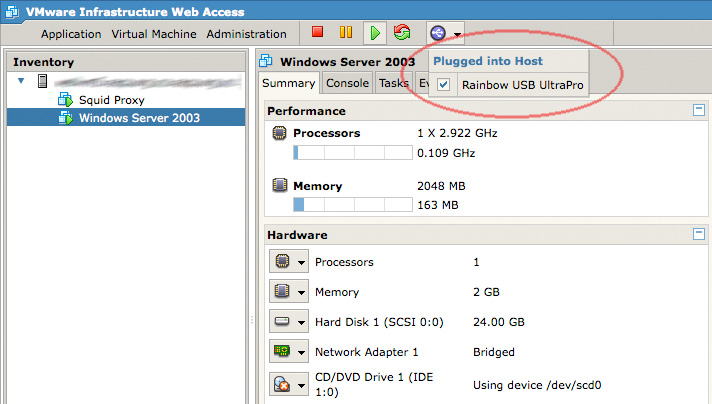
Assuming there are USB devices attached to the server, once the virtual machine boots a small USB icon will appear within the VMWare web management console. Click on the icon and select the relevant USB device to attach it to the running virtual machine.

All going well the USB device will appear within the virtual machine as an accessible device. VMWare Server remembers this selection, so the next time the virtual machine (or server itself) is restarted the USB device will automatically be attached to the running VM.


Suggestions For Improving Your Research Process

Submitted by David on 22 July 2009 - 5:43am

Below is a presentation I gave today to a group of Honors students at Victoria University's School of Architecture and Design. The presentation covers what I have learnt during my time doing my PhD and the mistakes I made, especially around the research process.

The primary message of the presentation is that research is by no means easy and when things get difficult you need to focus on MUPPET:

Motivate - Eureka moments only take you so far.

Undertake - Write something every (other) day.

Plan - Conciously identify your rainbow (objective), horse (process) and cart (interest).

Ponder - Understand how your actions relate to the research.

Exchange - Talk to everyone (relevant) about your research.

Test - Continually evaluate what you have done and where you are going.


VMWare Server 2.0 optimisations

Submitted by David on 19 July 2009 - 8:42am

VMWare Server 2.0 is emerging as a capable, zero cost alternative to VMWare ESX when used in combination with Ubuntu Server 8.04LTS. Unfortunately "out of the box" performance can be a little disappointing, especially when running guest Windows virtual machines. What follows are a few system tweaks that can improve performance without hampering overall system stability. I have not come up with these myself, instead they are pruned from the following pages:

Kernel parameters

In addition to the default Ubuntu Server kernel parameters, the following should be appended to the end of /etc/sysctl.conf.

vm.swappiness=0
vm.overcommit_memory=1
vm.dirty_background_ratio=5
vm.dirty_ratio=10
vm.dirty_expire_centisecs=1000
dev.rtc.max-user-freq=1024

Once added reboot the server to ensure their application is successful and permanent.

Create an in-memory temp drive

In the host's /tmp directory create a new directory named vmware (e.g. /tmp/vmware). This will be used as the mount point for a tmpfs (in-memory) partition for storing VM related, temporary files.

Edit /etc/fstab and add the /tmp/vmware partition to your list of mount points:

tmpfs /tmp/vmware tmpfs defaults,size=100% 0 0

Now if you execute the following command the tmpfs filesystem will be mounted at /tmp/vmware:

sudo mount /tmp/vmware

If successful, reboot the Ubuntu server to ensure the tmpfs partition is mounted at boot time.

VMWare Server configuration

Edit the /etc/vmware/config file and ensure the following configuration declarations are set:

prefvmx.minVmMemPct = "100"
prefvmx.useRecommendedLockedMemSize = "TRUE"
mainMem.partialLazySave = "TRUE"
mainMem.partialLazyRestore = "TRUE"
tmpDirectory = "/tmp/vmware"
mainMem.useNamedFile = "FALSE"
sched.mem.pshare.enable = "FALSE"
MemTrimRate = "0"
MemAllowAutoScaleDown = "FALSE"

These configuration declarations instruct VMWare Server to keep all virtual machines in memory and not to write unused blocks to disk. It also sets the temporary directory to the newly created tmpfs partition at /tmp/vmware.
Restart the VMWare Server process (sudo /etc/init.d/vmware restart) or reboot the server for these changes to take effect. The net result should be notably smoother virtual machine performance, especially when it comes to Windows guests.

Virtual machine tips

  • Always use fully allocated disk images.
  • Do not use snapshots as they are approximately 20% slower.
  • Always install the VMWare Tools package.
  • If running Linux make sure the kernel is compiled for running within a VM, or is using the correct boot time parameters.